Job States
| State | What is happening | What to do |
|---|---|---|
| PENDING | Backend is validating paths, selecting workers, generating presigned shard URLs, and dispatching containers. Usually resolves in under 60 seconds. | Wait. Check worker counts appear. |
| RUNNING | NVFlare server is up, all required workers are connected, and FL rounds are executing. Worker count shows N/N connected. | Monitor progress via logs or the NVFlare dashboard. |
| FINISHED | All rounds completed — or the job was manually stopped. Output written to files_out/ and model_out/ in your workspace. | Download your model from model_out/. |
| FAILED | A worker crashed, timed out, or a validation error occurred. Error message stored on the job. Partial output may exist in files_out/. | Read the error message. Check logs. Fix and resubmit. |
| CANCELLED | Job was manually cancelled by the user. Partial output may exist. | Resubmit if needed. Check partial logs in files_out/. |
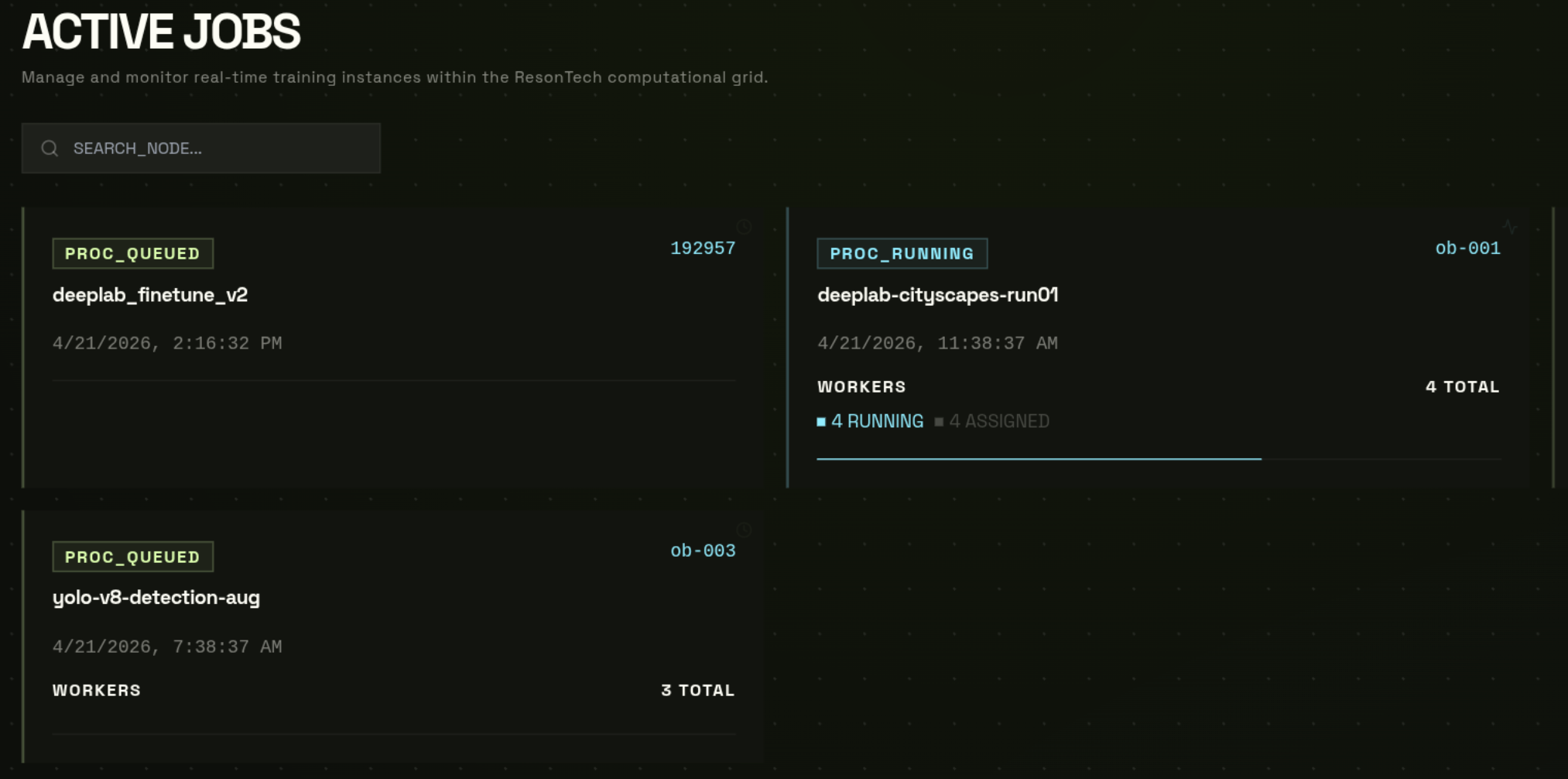
Understanding Worker Counts
The worker count panel shows four numbers in real time:
| Counter | Meaning |
|---|---|
| Total | Number of GPU workers assigned to this job |
| Connected | Workers currently online and sending heartbeats to the NVFlare server |
| Errors | Workers that reported an error or crashed |
| Disconnected | Workers that lost connectivity (may be reassigned automatically) |
A healthy running job shows Connected = Total and Errors = 0. If Connected drops below the minimum client threshold for too long, the job may be marked FAILED.
Finding Your Results
When a job reaches FINISHED, output is written to two folders in your bucket:
| Path | Contents |
|---|---|
| jobs/{name}/files_out/ | Training logs, per-round metrics JSON, any files your fl_train_model() writes to out_dir |
| jobs/{name}/model_out/ | Final aggregated model checkpoint after the last FL round (global_model.pt or similar) |
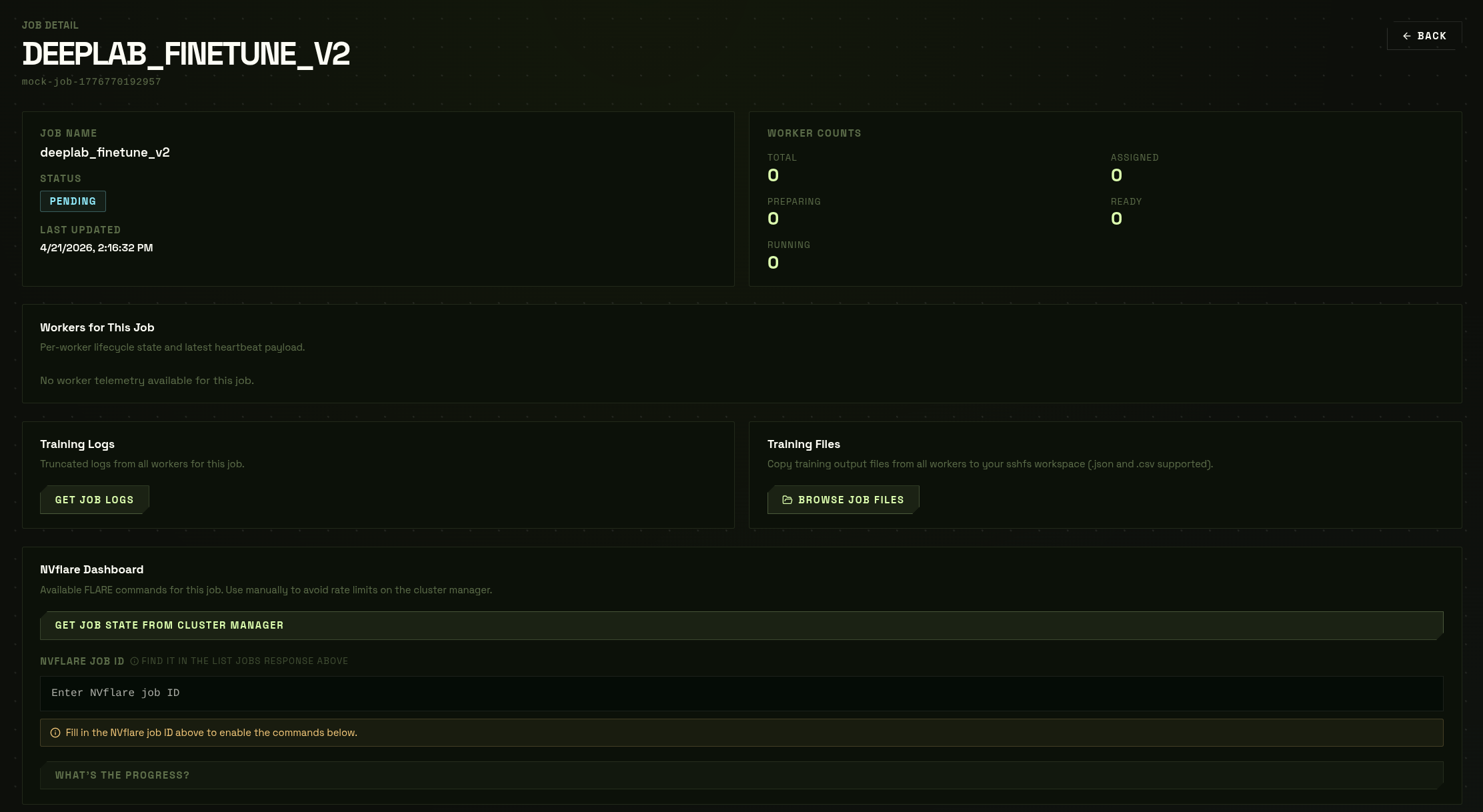
Option A — from the Job Detail page
- 1
Dashboard → Jobs → click the finished job
- 2
Click "Browse Job Files"
Opens the Files page pre-navigated tojobs/{name}/.
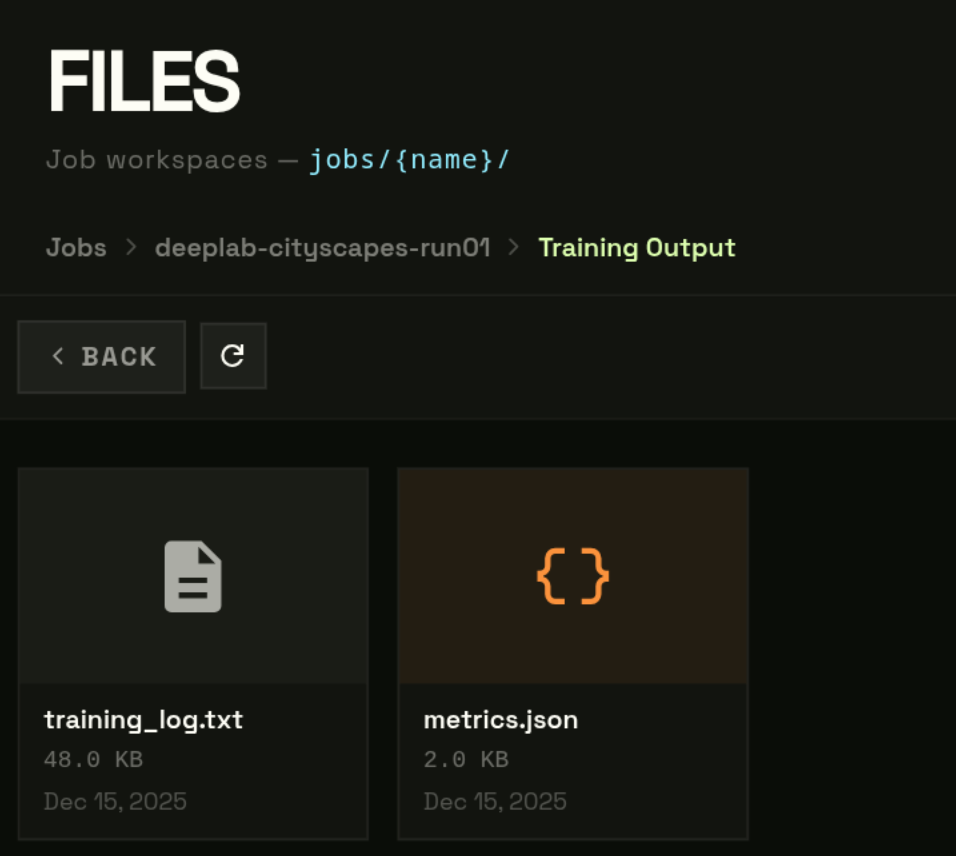
Option B — from the Files page directly
- 1
Dashboard → Files → click your job folder
- 2
Click files_out/ for logs, or model_out/ for the checkpoint
Reading Logs & Metrics
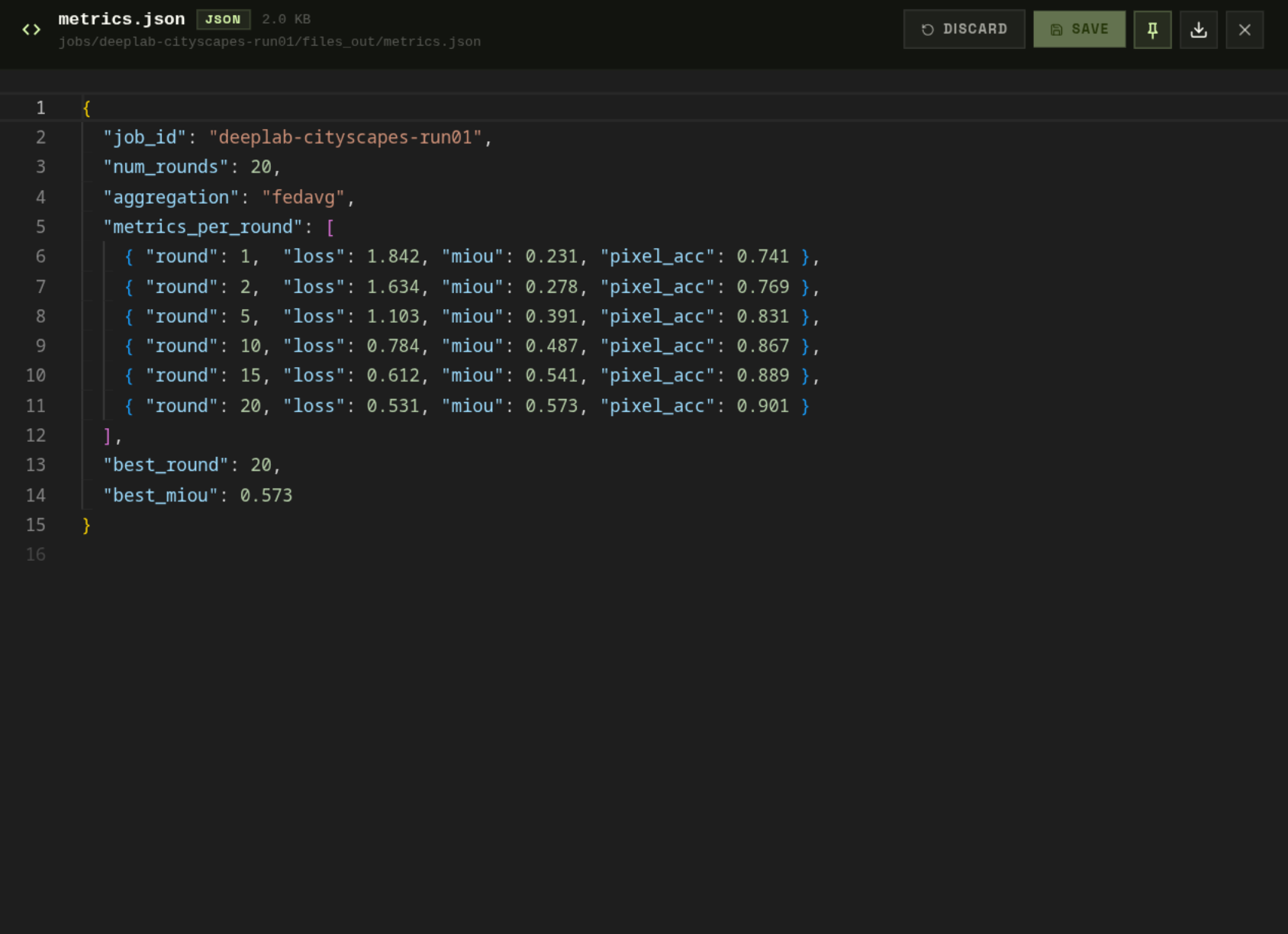
Click any .txt or .json in files_out/ to open it in the Monaco viewer — no download needed.
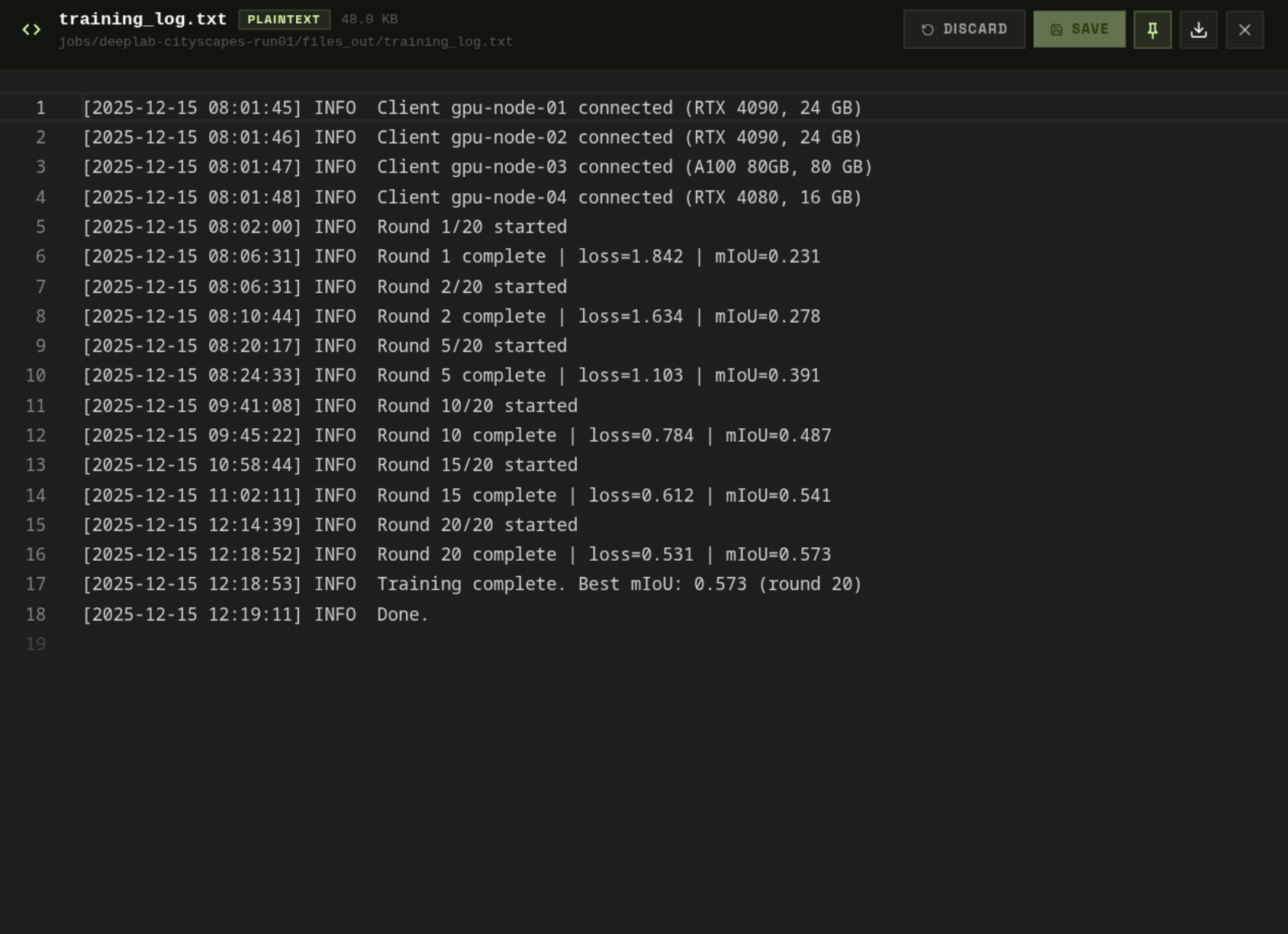
metrics.json contains structured per-round data:
Log types
| File | Contents |
|---|---|
| server.log | NVFlare FL server log — round start/end, aggregation events, client connections |
| client_{n}.log | Per-worker client log — local training steps, loss values, checkpoint writes |
| metrics.json | Structured per-round data: loss, accuracy, sample counts, round duration |
| fl_round_complete.json | Summary of each completed round including all client contributions |
Downloading the Final Model
- 1
Navigate to model_out/
- 2
Click the .pt checkpoint file
- 3
Click "Download"
A 1-hour presigned GET URL is generated. Download starts directly from Garage.
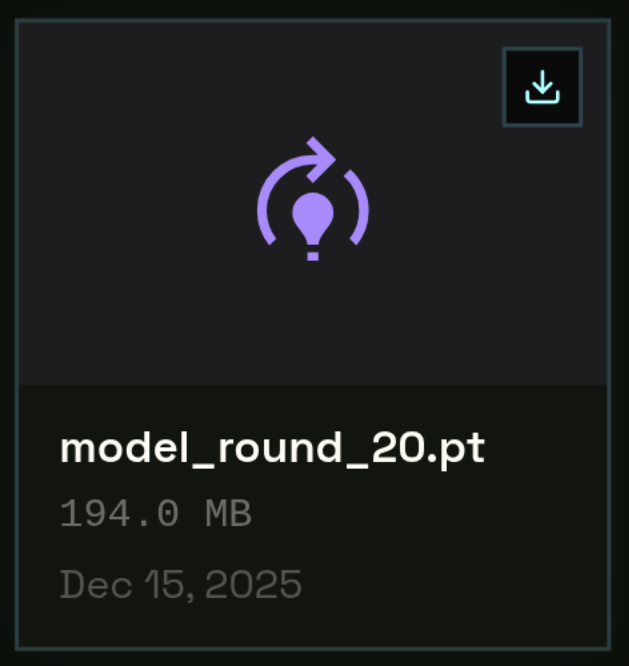
state_dict. Load it at inference time with model.load_state_dict(torch.load("model_round_N.pt")). No NVFlare dependency required.Handling Failed Jobs
If a job reaches FAILED state, check the error message on the Job Detail page first. Common causes:
| Error | Most likely cause | Fix |
|---|---|---|
| Worker timeout | Shard download too slow, model_def.py import error, or missing dependency | Check your model_def.py imports and requirements.txt. Verify shard file structure. |
| OOM crash | Batch size too large for the allocated GPU VRAM | Reduce batch_size in Step 2 and resubmit. Or request a GPU with more VRAM. |
| Missing file | Required file not found in your bucket at the expected path | Re-upload the missing file and resubmit. Check the exact path in your config. |
| NCCL error | Transient network issue between workers on multi-node jobs | Retry — transient network errors resolve automatically on resubmit. |
| name is not defined (server-side) | Missing import in model_def.py (e.g. import torch not present) | Add all required imports to the same file as your model class. |
| FileNotFoundError: manifest.ndjson | Shard ZIP does not contain manifest.ndjson at root | Verify your shard ZIP structure — manifest must be at the root, not in a subdirectory. |
files_out/ may still be useful — logs from completed rounds are preserved even on failure. Check server.logfor the exact error that triggered the failure.