Your S3 Bucket
Every ResonTech account can get private S3-compatible bucket in profile page.
Your bucket credentials are on the Profile → Storage page:
| Credential | Where to find it | Notes |
|---|---|---|
| Endpoint URL | Profile → Storage | Your S3 endpoint (e.g. https://s3.reson.tech) |
| Bucket name | Profile → Storage | Unique per account |
| Access Key ID | Profile → Storage | Your S3 access key |
| Secret Access Key | Profile → Storage | Shown once — copy it immediately |
secretAccessKey is shown once. If you lose it, go to Profile → Rotate Key. The old key is immediately revoked. All existing presigned URLs referencing the old key stop working.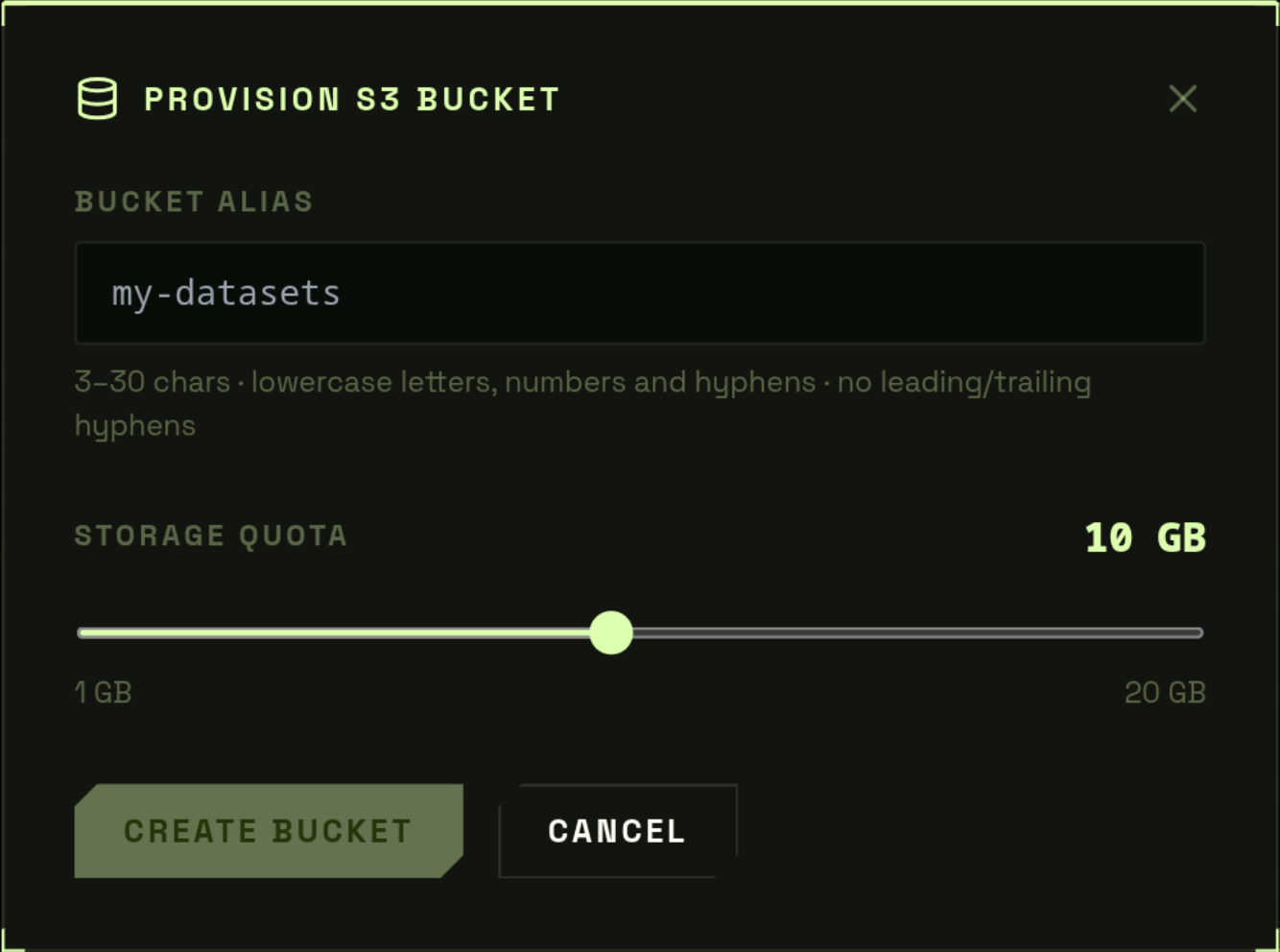
How S3 Access Works
The platform never acts as a data proxy. All file I/O goes directly between your client (browser, rclone, SDK) and via presigned URLs. The API only generates these URLs — it never reads or writes your data.
Upload flow
- Your client requests an upload URL from the API
- API generates a presigned URL (valid 1 hour)
- Your client sends the file directly to bucket — zero bytes through the API
Worker data access flow
- At job dispatch, the kernel generates presigned GET URLs for each worker's assigned shard
- Workers receive URLs valid for 1 hour — enough to download their shard and begin training
- URLs expire after download — workers never have persistent access to your bucket
- Raw training data never traverses the ResonTech control plane
Programmatic access (rclone)
Use rclone to access your bucket from the command line — upload large datasets, sync directories, download results:
Navigating the File Browser
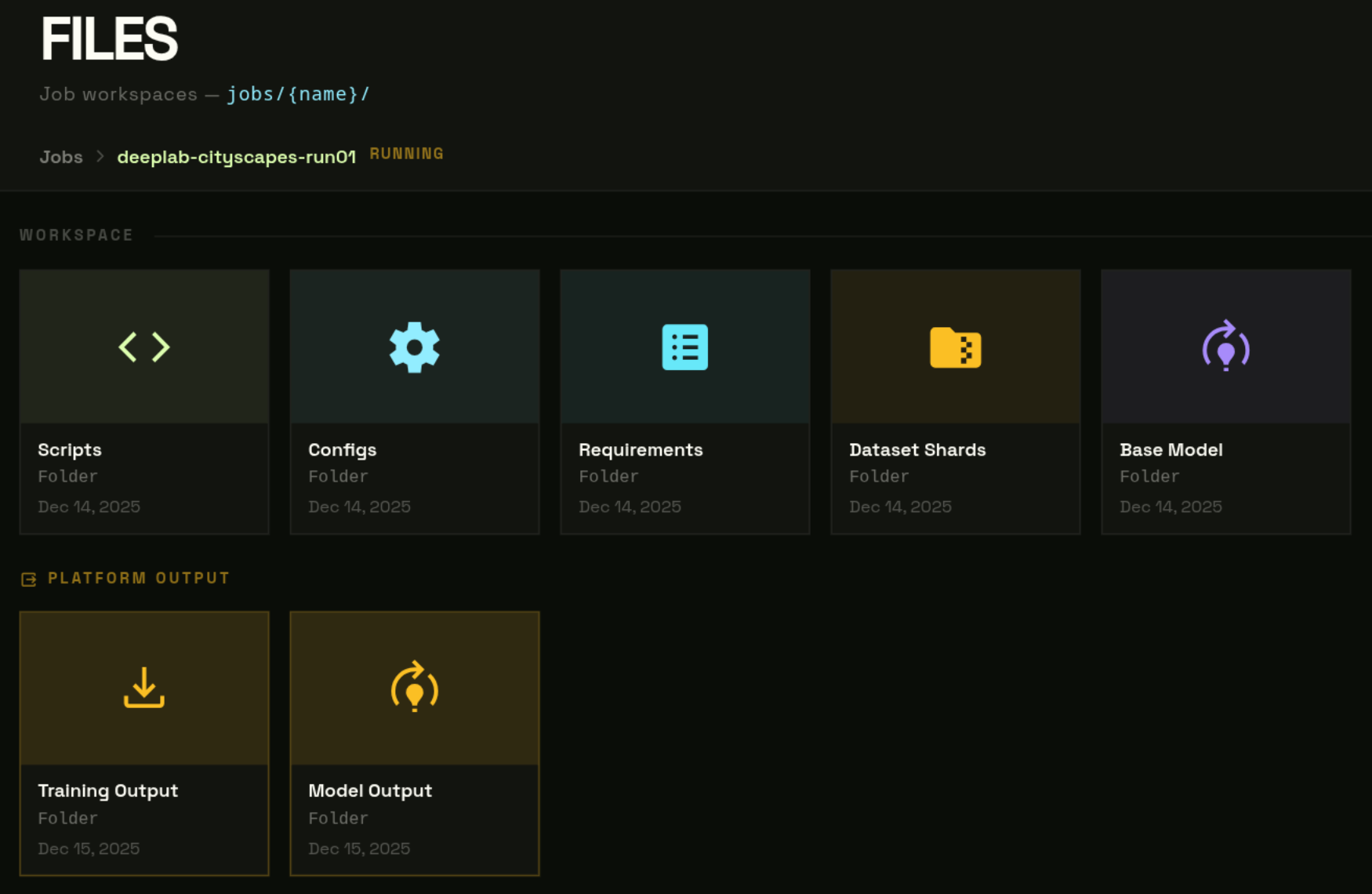
All job folders live under the jobs/ prefix.
- The browser opens at
jobs/— one card per job folder. - Click a card to enter it. Breadcrumb updates:
Jobs › job-name. - Click a subfolder to go deeper. Click any breadcrumb segment to jump back up.
Storage meter
The header shows used vs. total quota, refreshed on every directory load.
Uploading Files
Small files (< 10 MB)
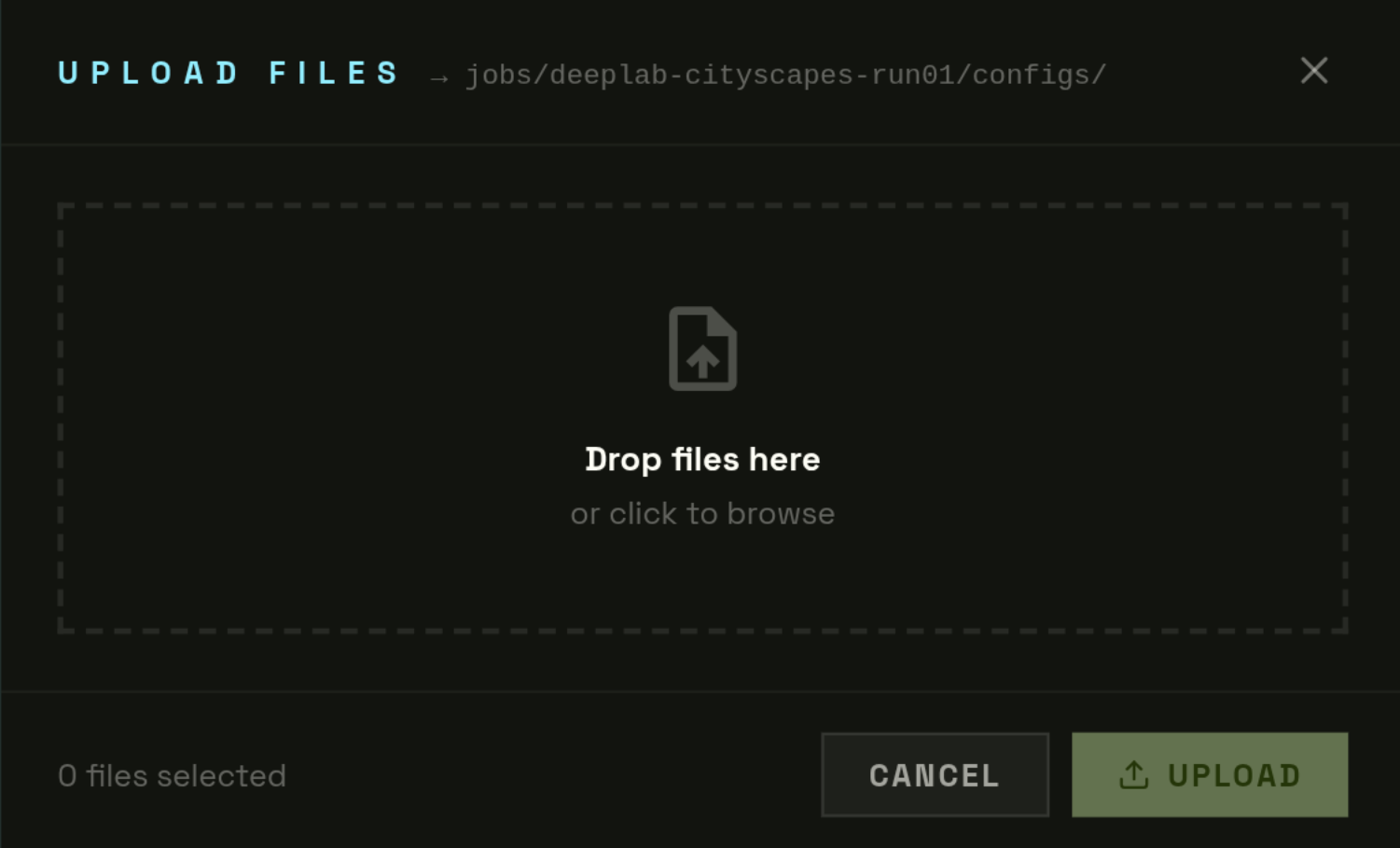
Toolbar → Upload → drag or browse. Files go directly to Garage via a 15-minute presigned PUT URL — zero bytes through the API.
Large files (≥ 10 MB) — automatic multipart
The browser automatically switches to multipart upload for large files:
- On network failure, the incomplete upload is automatically aborted and retried
- Maximum supported file size: 500 GB
Uploading via rclone (recommended for large datasets)
File Viewer & Editor
Click any .py, .json, or .txt file to open the Monaco-based file viewer inline.
| Action | How | What happens under the hood |
|---|---|---|
| View | Click any text file | |
| Edit | Click the pencil icon to enable the editor | Monaco editor activated with syntax highlighting |
| Save | Click Save in the editor toolbar | Overwrites the S3 object via a fresh presigned PUT URL |
| Download | Click Download in the viewer header | 1-hour presigned GET URL — direct from bucket |
| Rename | Right-click → Rename | |
| Delete | Right-click → Delete | Removes the object. Folder delete is recursive. |
.pt, .zip, and other binary formats.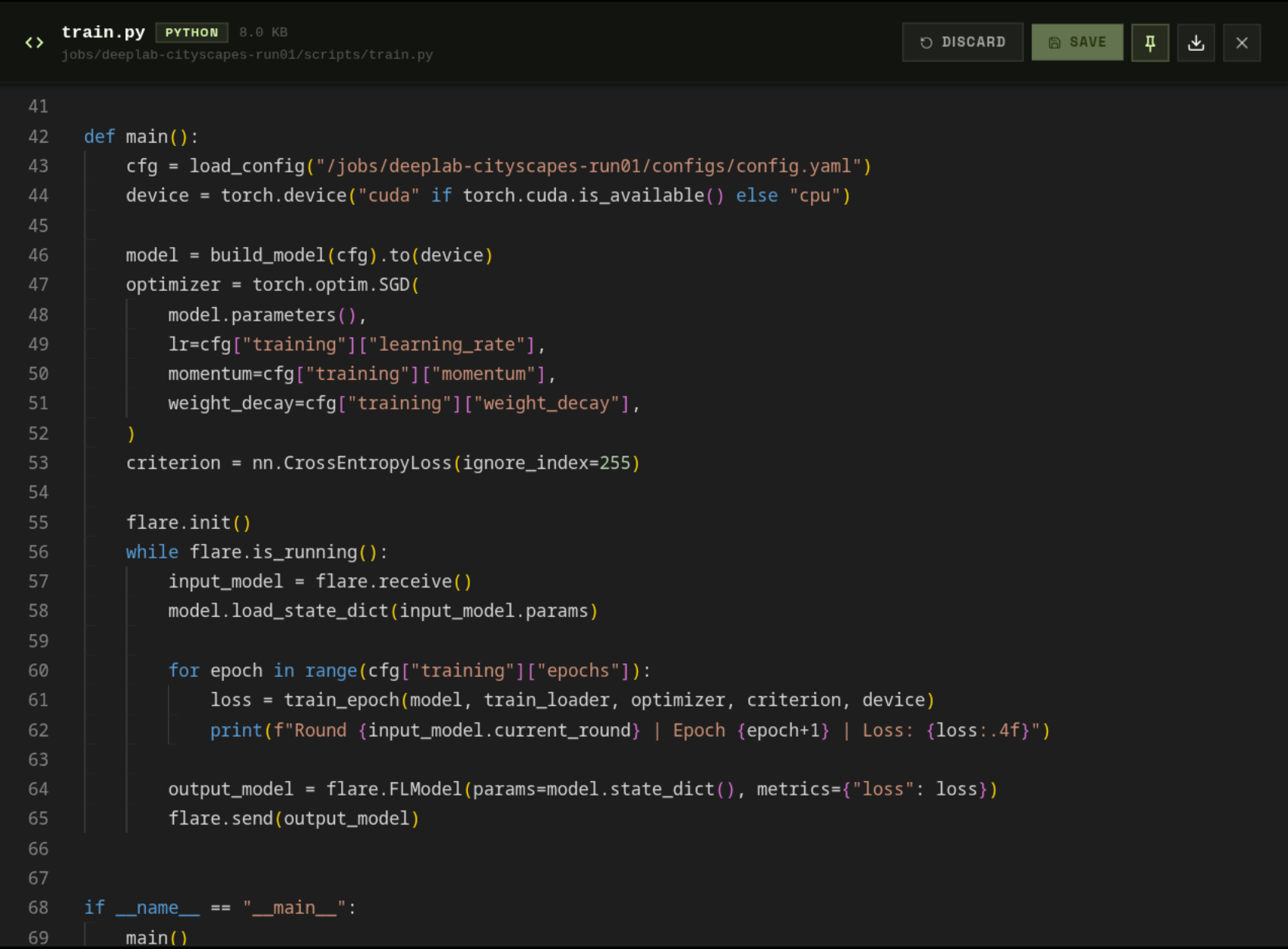
Expected Workspace Layout
The Submit Wizard and Python SDK both expect this folder structure inside your bucket. Workers look for specific paths when a job starts:
Pinned File Panels
Pin any text file as a persistent side panel that stays open while you navigate — stored in localStorage across page reloads.
- Open a file → click the Pin icon in the viewer header.
- The panel attaches to the right side of the Files page.
- Edit and save directly from the pinned panel without navigating away.
- Click Unpin or the × to remove it.
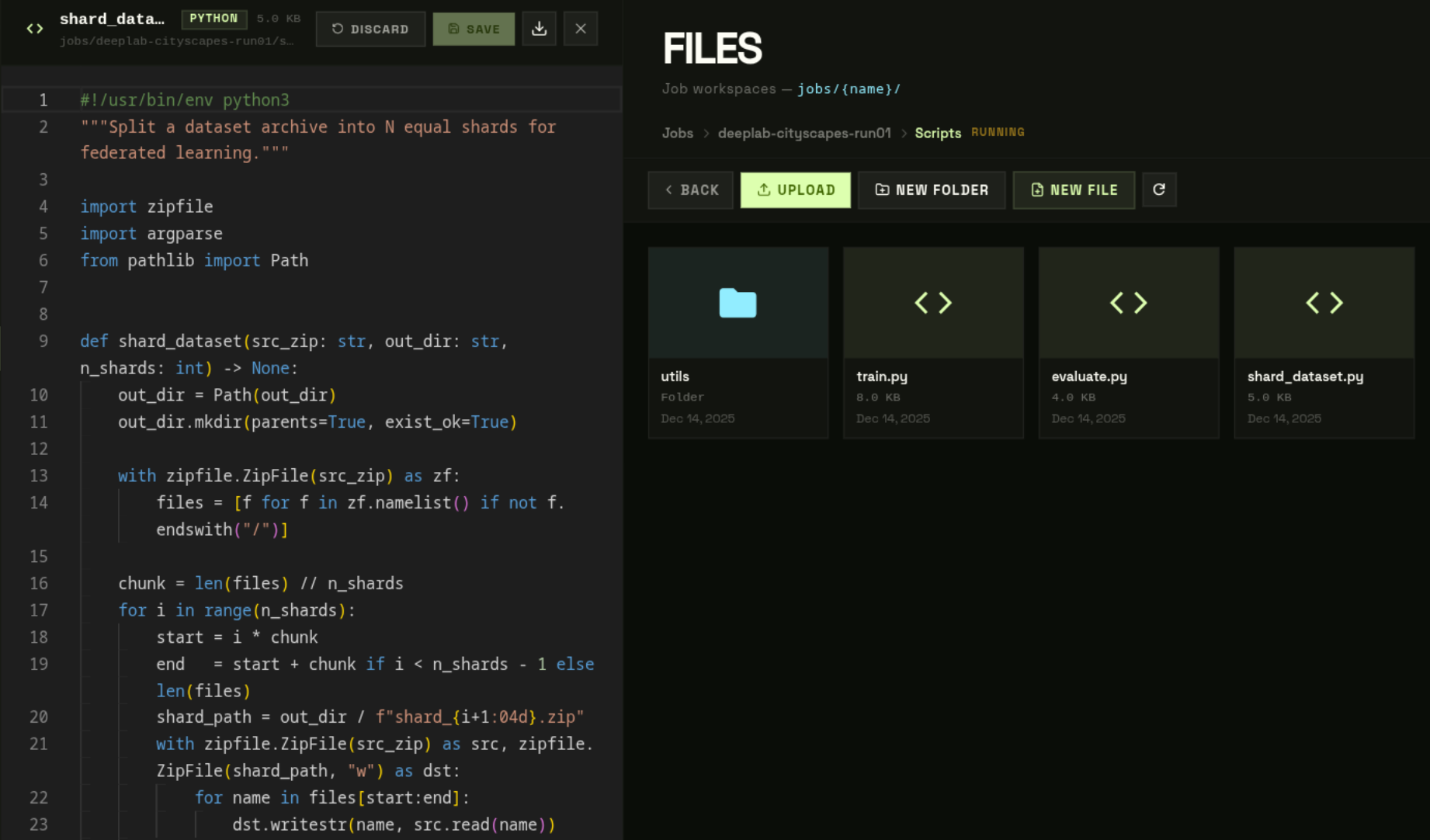
Pinned panels are useful when editing model_def.py while checking your config_fed_client.json side by side.